
Why interactive widgets beat static overlays alone
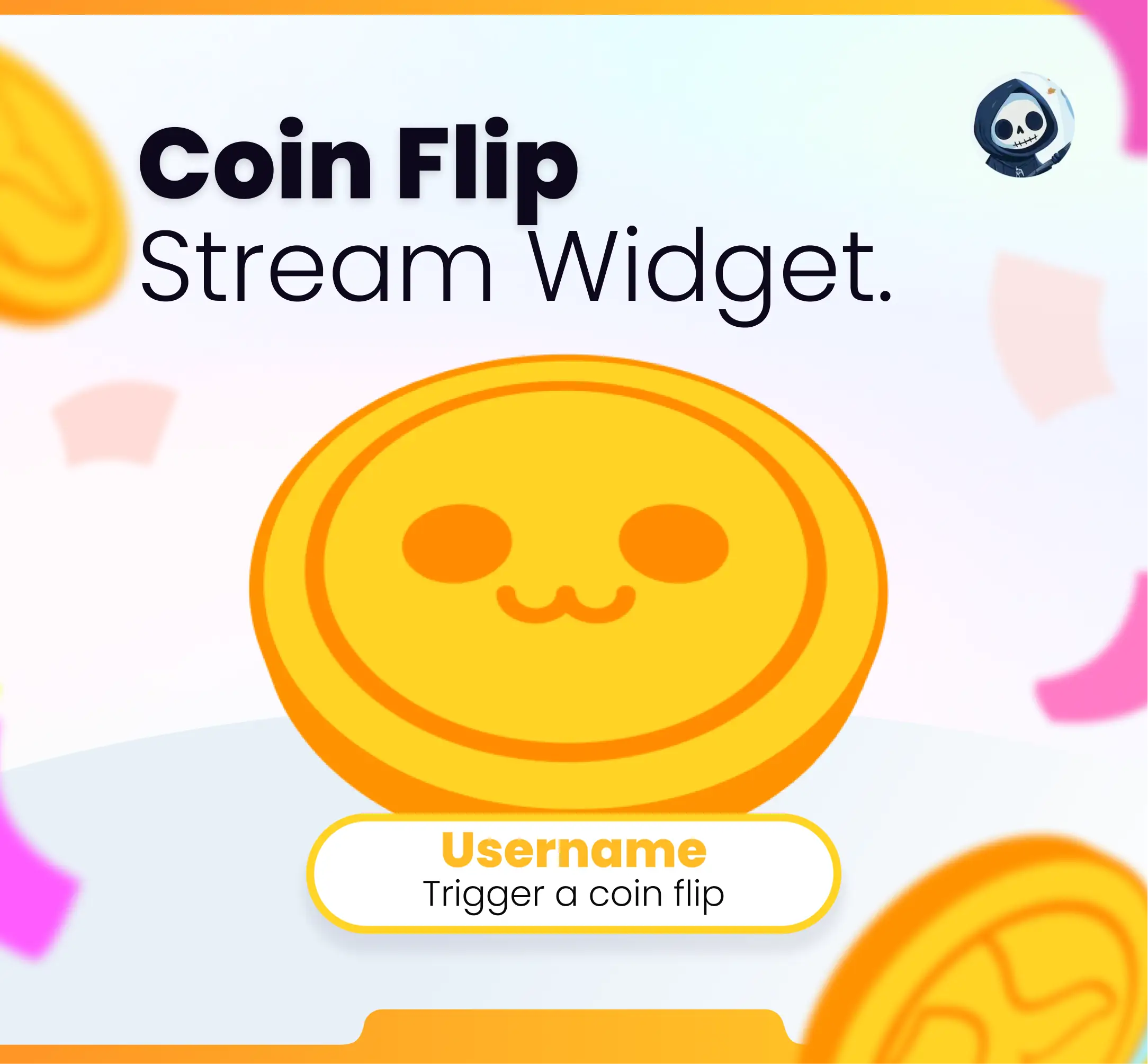
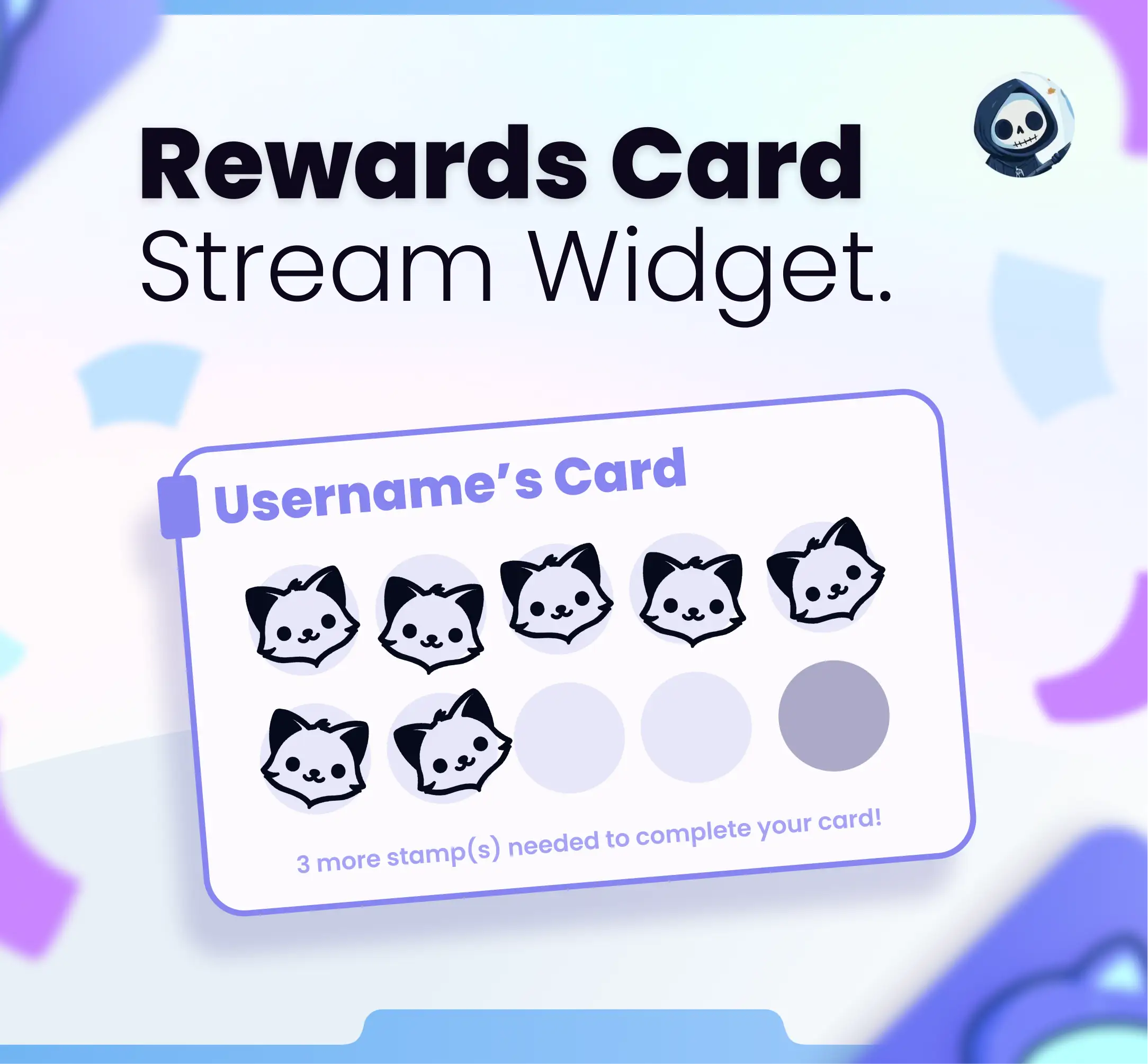
Static overlays set the look. Interactive widgets set the energy. When chat can flip a coin, open a reward card, or summon a swarm on screen, watch time and channel-point spend go up.
The best OBS widgets are browser sources: easy to add, easy to resize, and compatible with StreamElements or the NeoWidgets manager.
Best interactive stream widgets for OBS
A short list of high-engagement picks from the NeoStreamShop catalog.
-
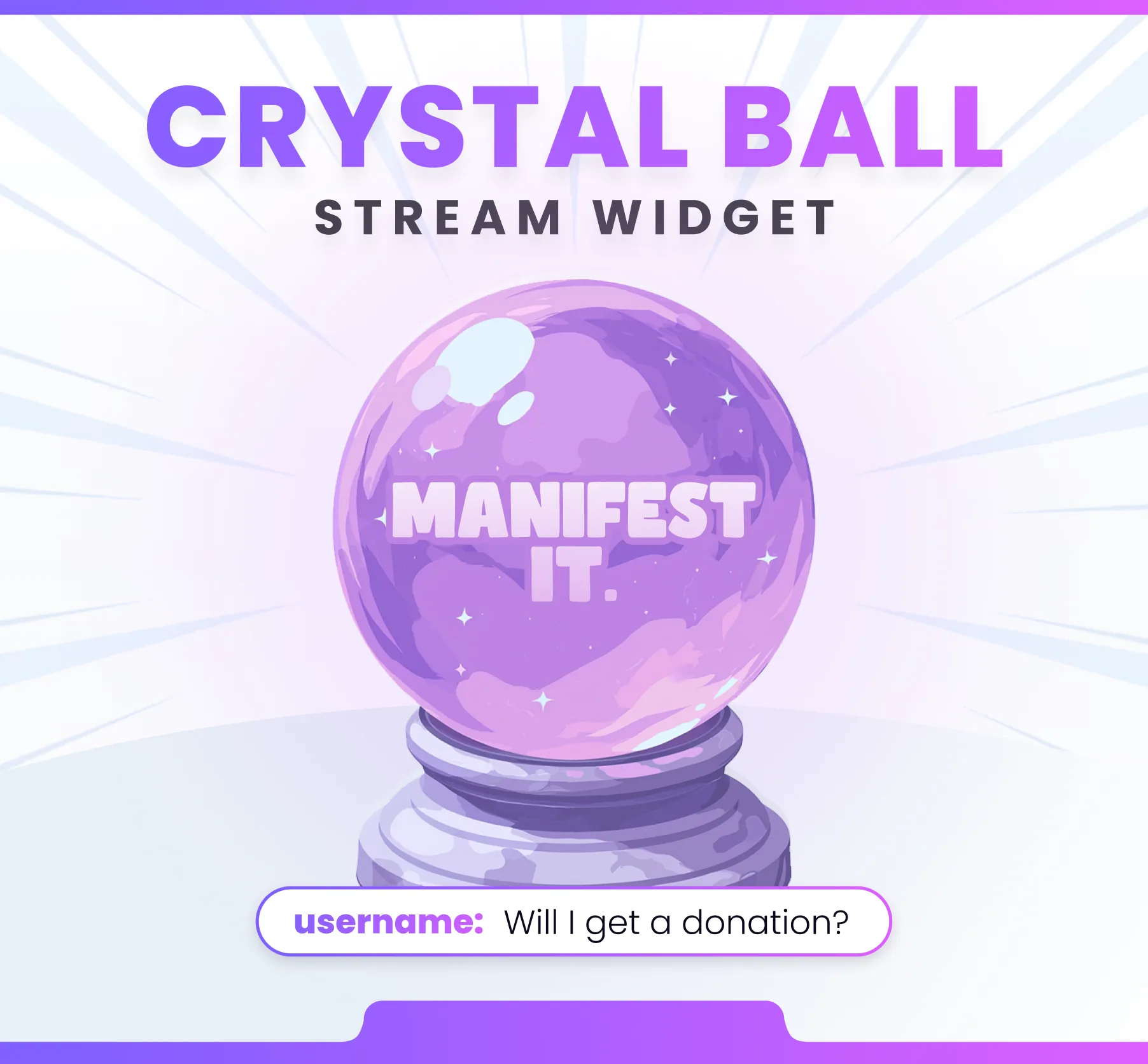
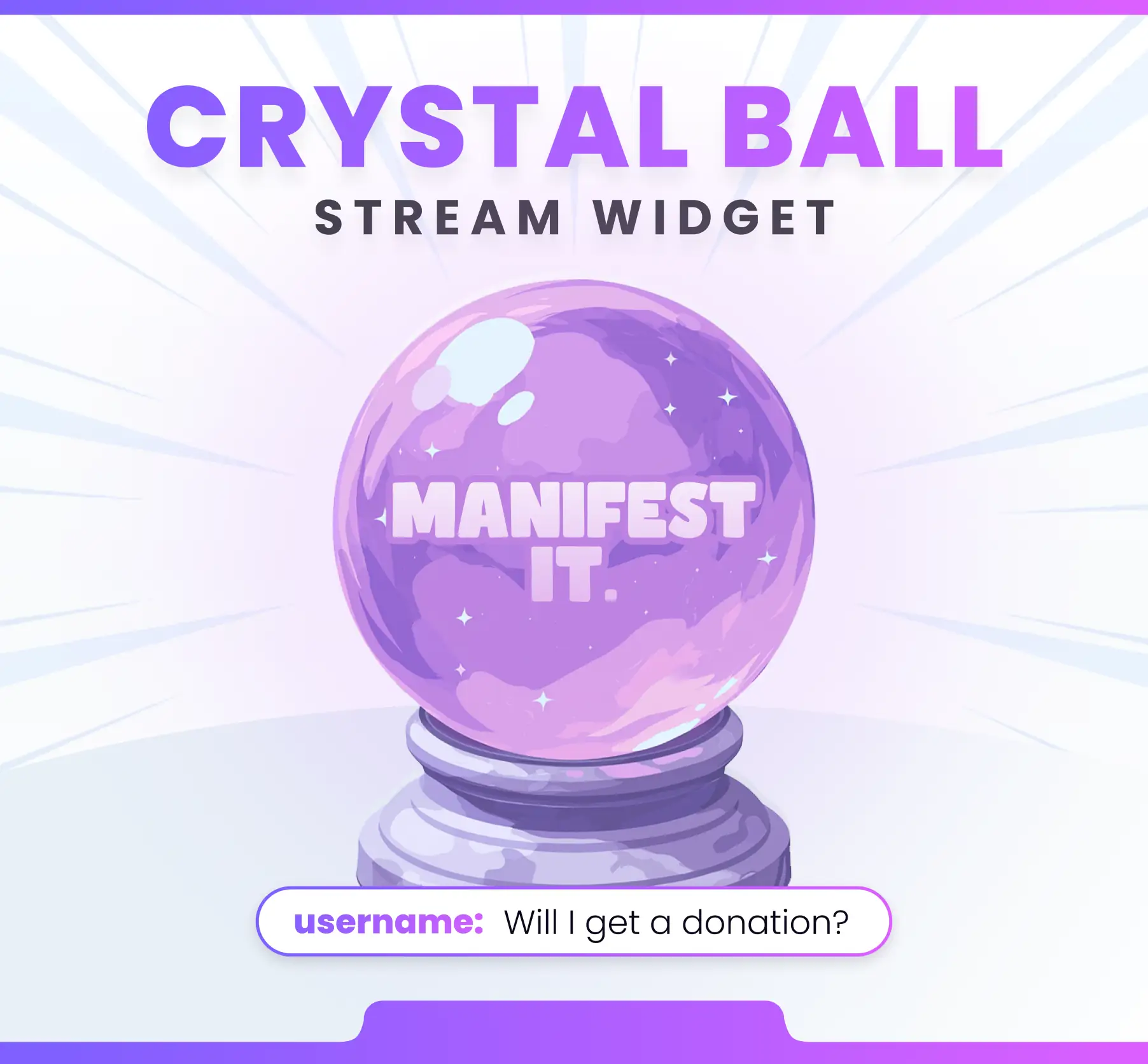
Crystal Ball
Perfect “ask the ball” moments for chat. Lightweight, readable, and easy to trigger mid-stream.
-
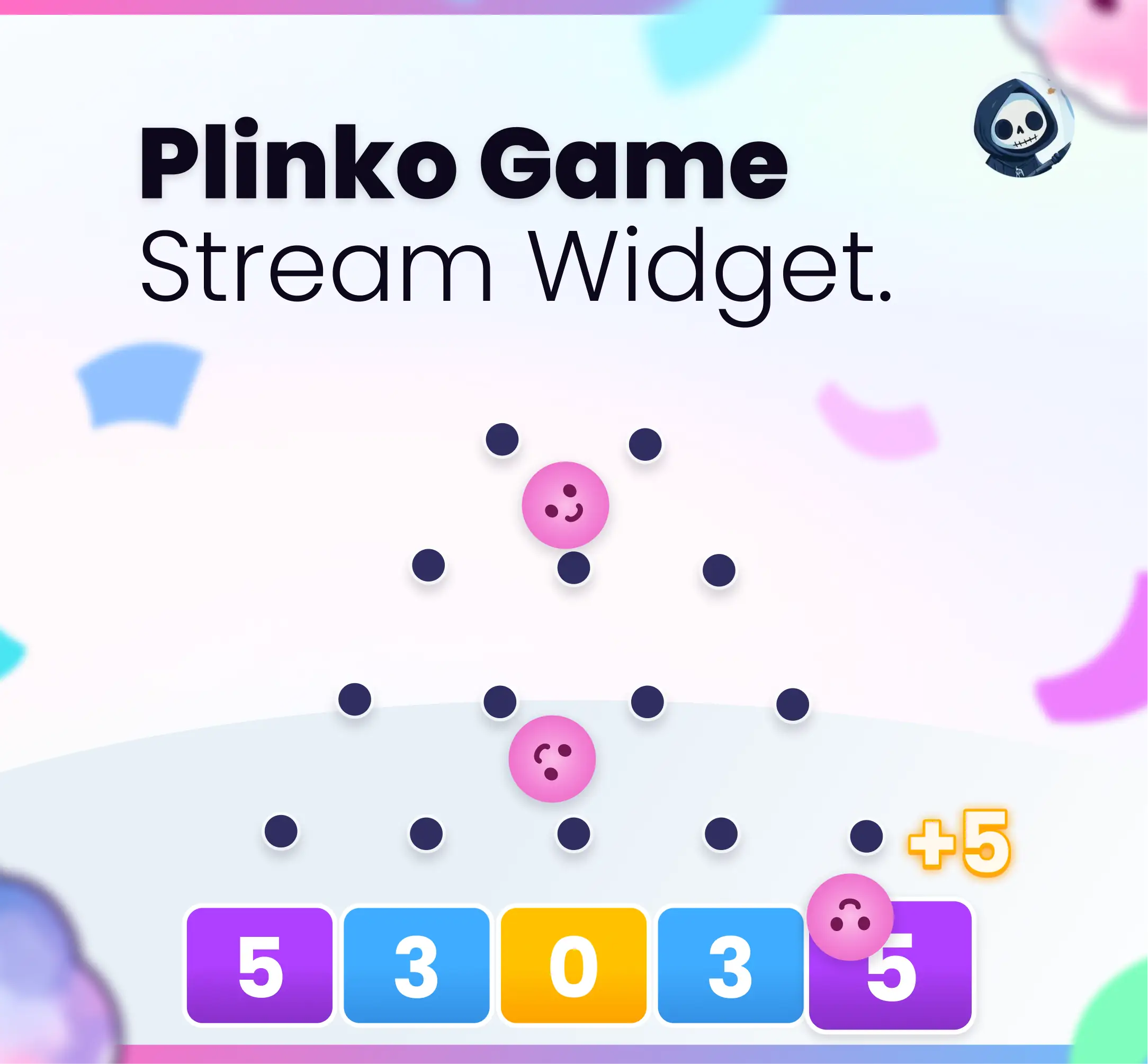
Plinko Game
Classic chat gambling energy without leaving OBS. Great for channel points and hype trains.
-
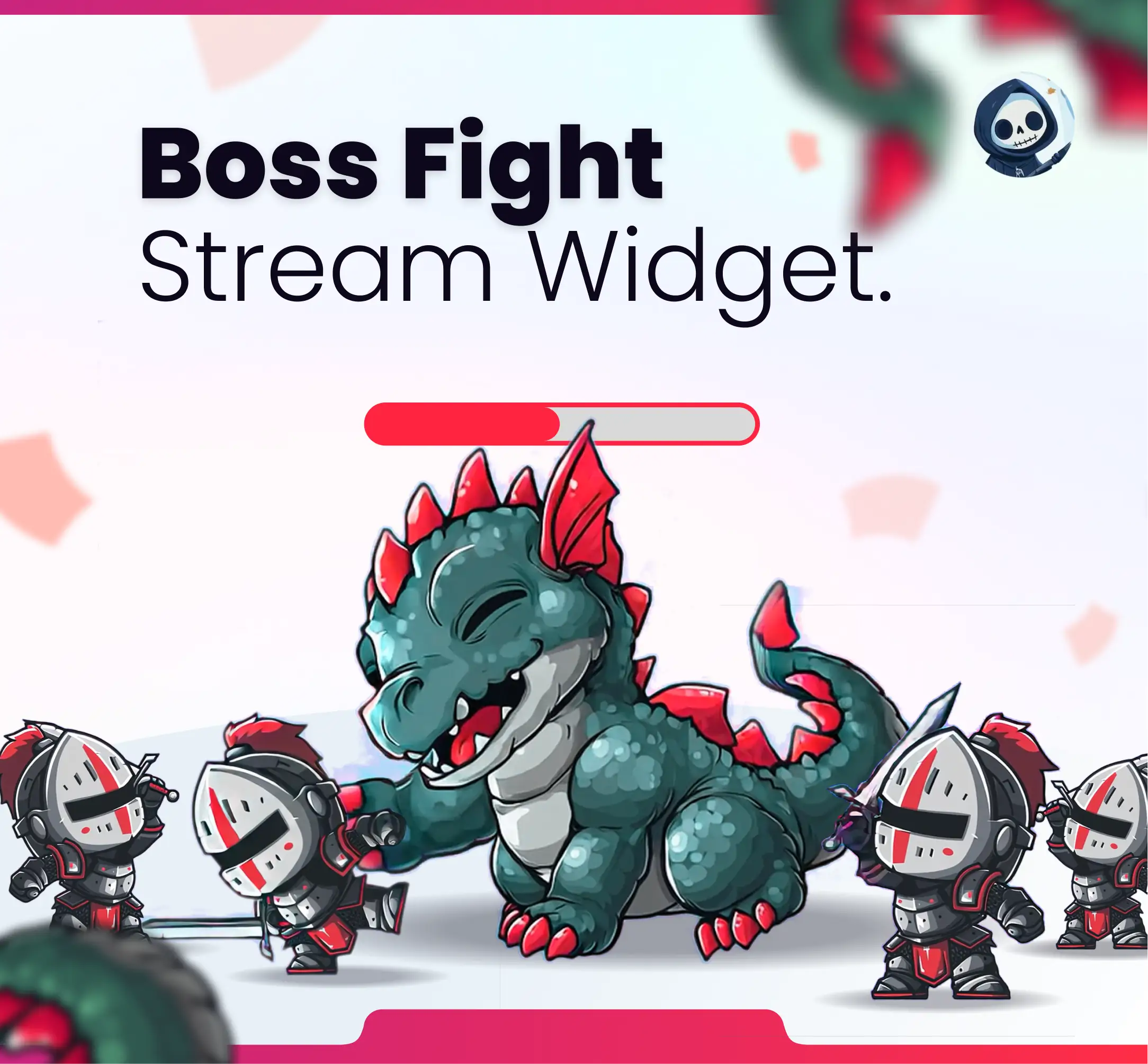
Boss Fight
Turns donations and bits into a shared fight — excellent for community raids and boss events.
-
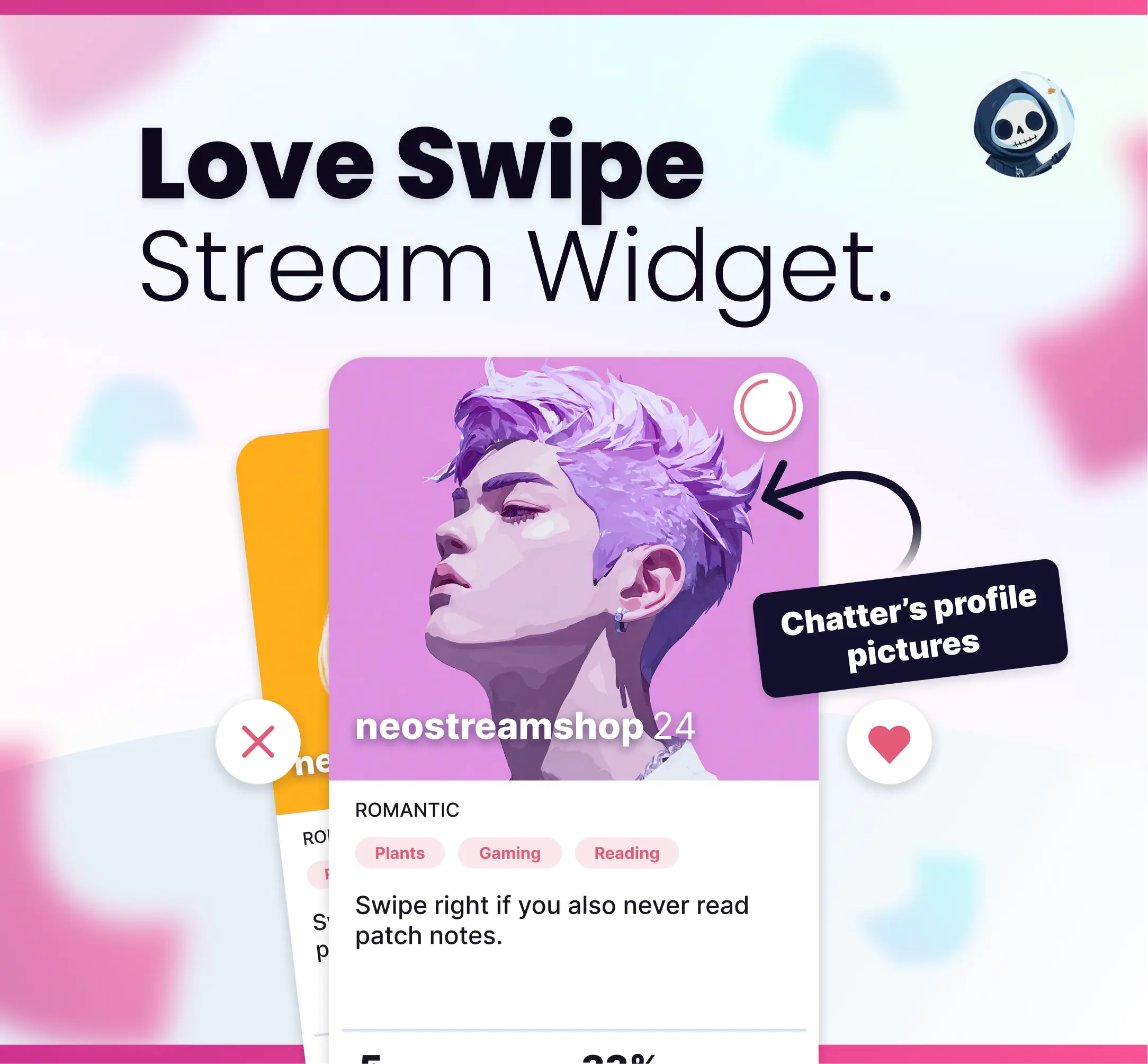
Love Swipe
Fun social interaction for chill / dating / IRL vibes. Chat participates instead of lurking.
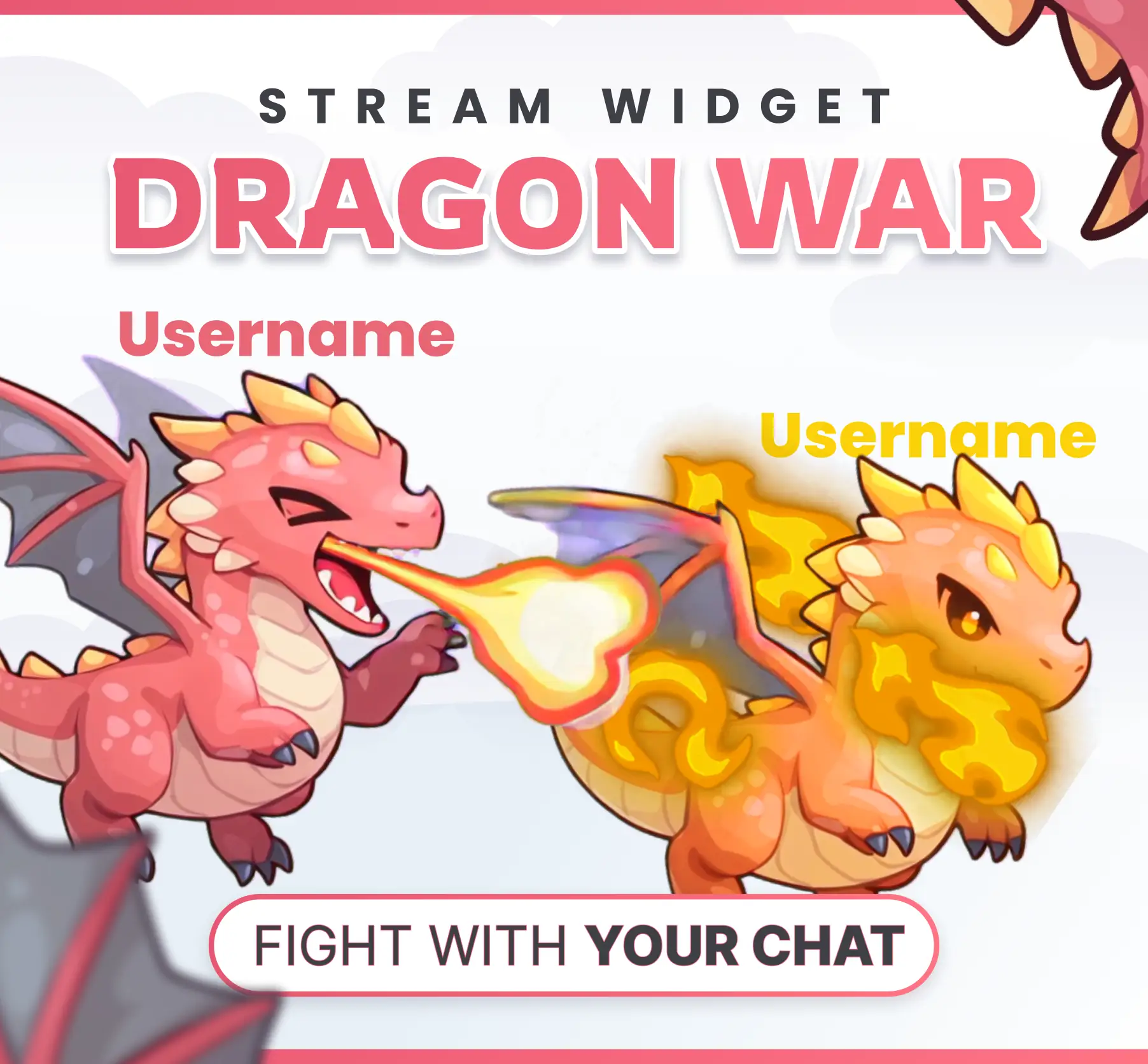
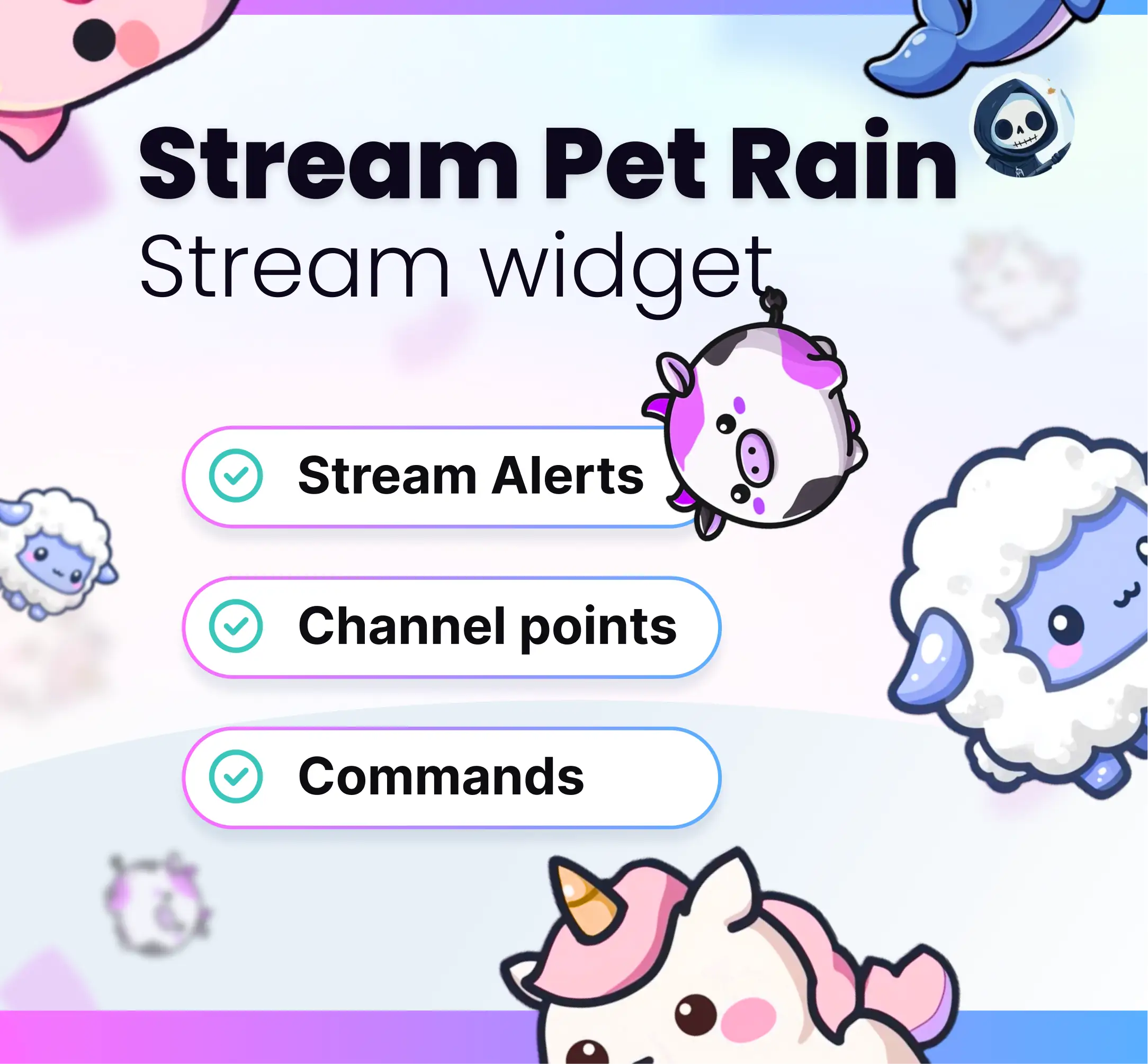

How to add a widget as an OBS browser source
- Purchase and open your product setup page / manager link.
- Copy the browser source URL for the widget.
- In OBS: Sources → Add → Browser → paste URL → set 1920×1080 (or product size).
- Place the source above your game capture when the widget should be visible.
- Test with a channel point redeem or chat command before going live.
OBS widgets FAQ
Do interactive widgets work with Streamlabs?
Most widgets are browser sources, so they work in OBS Studio, Streamlabs Desktop, and tools that support browser sources. Check the product page for StreamElements notes.
Will widgets lag my stream?
Well-built browser widgets are lightweight. Close unused sources, keep one heavy animation at a time, and use hardware encoding when possible.
Can viewers trigger widgets?
Yes — depending on the product, triggers can include chat commands, bits, subscriptions, follows, and Twitch channel points.
Where can I browse all widgets?
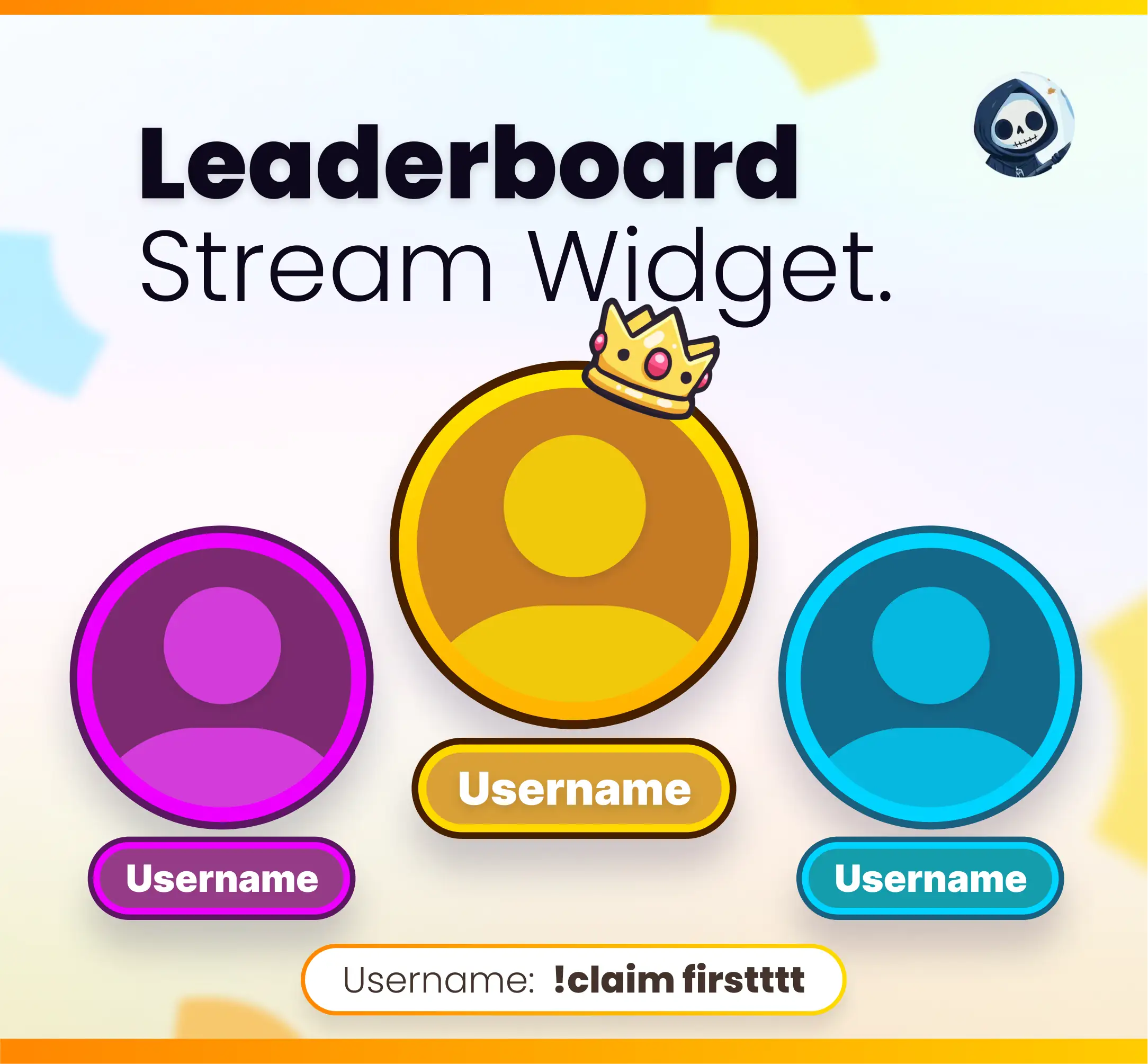
Visit the Stream Widgets collection on NeoStreamShop for games, alerts, and community spawn widgets.